
Introduction
Finding that one of your AirPods is quieter than the other can be annoying and disrupts your listening experience. This issue is common among AirPod users and understanding its causes is essential to resolving it effectively. In this guide, we will explore the typical causes and offer practical solutions to get your AirPods back to optimal performance.
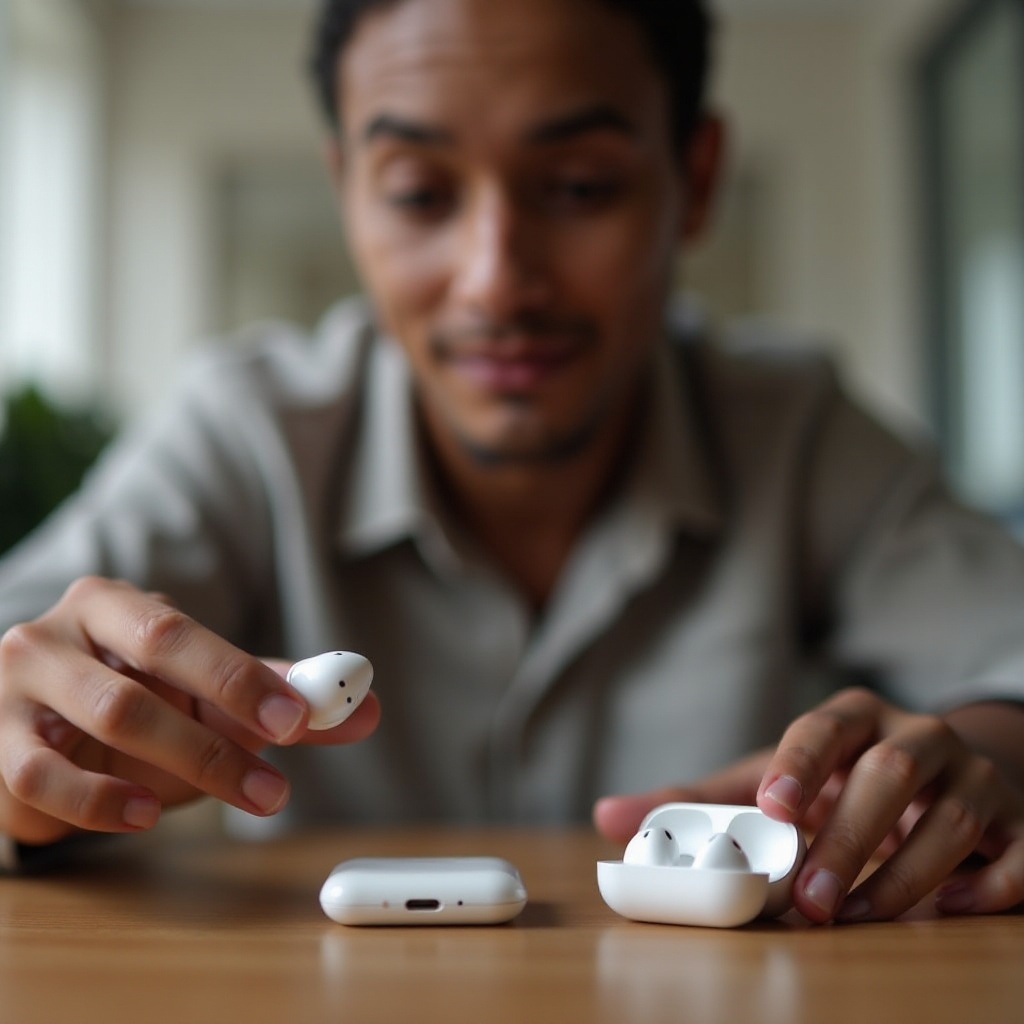
Understanding the Problem
To efficiently address this issue, it’s important to understand how your AirPods deliver sound. Each AirPod is designed to function independently while also working together seamlessly. Numerous factors can interfere with this balance, creating uneven sound volumes.
How AirPods Function
AirPods utilize Bluetooth technology to connect wirelessly to your device, delivering audio with clarity and precision. Each AirPod has its own speaker system, microphone, and battery, allowing them to function either as a pair or individually.
Potential Causes of Uneven Sound
There are several reasons why one AirPod might sound quieter than the other:
– Accumulation of earwax or debris in the speaker mesh
– Misconfigured audio balance settings on your device
– Software glitches or outdated firmware
– Battery imbalance or charging issues
Recognizing these potential causes can help you take the appropriate corrective action.

Common Causes and Solutions
Identifying the cause is the first step. Now, let’s look at practical solutions for each issue.
Earwax and Debris Buildup
Debris accumulation can obstruct sound pathways:
1. Gently clean your AirPods with a soft, dry, lint-free cloth.
2. Avoid using sharp objects that could damage the mesh.
3. For stubborn debris, use a small brush or cotton swab lightly dampened with water.
Audio Balance Issues
Incorrect audio balance settings can disrupt your audio experience:
1. On an iPhone or iPad, go to Settings > Accessibility > Audio/Visual.
2. Ensure the audio balance slider is centered between the left and right channels.
Software and Connectivity Problems
Software glitches may also contribute to sound issues:
– Unpair and reset your AirPods via Settings > Bluetooth, selecting ‘Forget This Device.
– Restart your device and reconnect the AirPods.
Battery and Charging Problems
Unequal battery levels can cause volume discrepancies:
– Place both AirPods in the charging case and ensure they’re fully charged.
– Use your device to check the battery levels of both AirPods to confirm they’re balanced.
Step-by-Step Troubleshooting
If the previous solutions do not resolve the issue, you may need to take a more detailed approach to troubleshoot your AirPods.
Cleaning Your AirPods
Regular maintenance prevents debris buildup and ensures optimal performance. Make it a habit to clean them regularly, focusing on the speaker mesh.
Adjusting Audio Settings
Ensure your audio settings are optimal by revisiting your device’s settings. Audio balance and stereo should be calibrated properly to avoid issues.
Resetting and Reconnecting Devices
If issues persist, consider resetting your AirPods:
– Place your AirPods into the charging case.
– Press and hold the setup button on the back until the status light flashes amber, then white.
Updating Software
Keep all software up to date:
– Update your iOS by navigating to Settings > General > Software Update.
– Connect your AirPods to your device, ensuring it’s using the latest iOS, to update their firmware.
Advanced Troubleshooting
Persistent issues may require more advanced troubleshooting methods.
Checking for Firmware Updates
Although firmware updates are automatic, manual checks are sometimes necessary. Check for updates by navigating to Settings > General > About > AirPods while connected.
Using Diagnostic Tools
Apple provides built-in diagnostic tools through the Apple Support app that can help identify hardware issues.
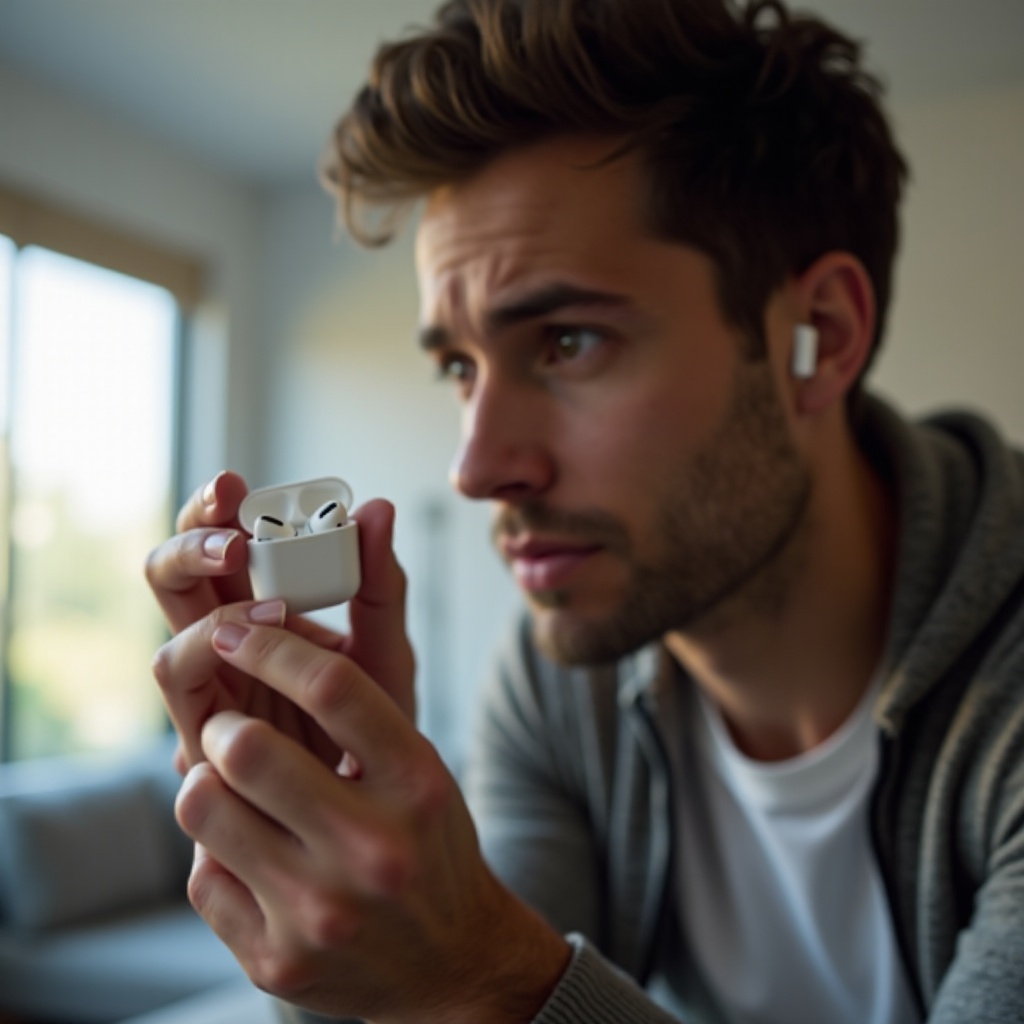
Prevention Tips
To keep your AirPods in top condition, incorporate these prevention tips into your routine.
Regular Maintenance
Perform regular cleaning and avoid exposing your AirPods to extreme conditions. Proper maintenance can enhance their longevity and performance.
Proper Storage Practices
Always store your AirPods in their charging case when not in use. This practice protects them from dust, debris, and potential damage.
Conclusion
Addressing the common problems affecting one AirPod’s volume is important to restoring balance. By following the solutions outlined above and adopting preventive measures, you can ensure a seamless listening experience with your AirPods.
Frequently Asked Questions
What should I do if cleaning doesn’t fix the issue?
If cleaning doesn’t resolve the problem, try resetting your AirPods or adjusting your device’s audio settings.
How can I check for firmware updates on my AirPods?
Connect your AirPods to your device and navigate to Settings > General > About to check firmware details.
When should I contact Apple Support for help?
If troubleshooting steps don’t resolve the issue, contact Apple Support for professional assistance.