
Introduction
You turn on your Samsung TV anticipating a relaxing viewing experience, but instead, you encounter a blank, black screen. This situation is both frustrating and concerning. Fortunately, what’s causing this can often be fixed without professional help. Understanding the potential causes and following the right steps can help you restore your TV’s functionality. Let’s examine these solutions closely.
Understanding the Samsung TV Black Screen Issue
A black screen isn’t always an indicator of a major malfunction; it could result from simple, fixable issues. These include errors in input connections, power discrepancies, or software malfunctions that need immediate attention. By identifying how frequently the black screen occurs and under what circumstances, like whether it flickers or there’s sound without a picture, you can pinpoint the root of the issue more accurately. This understanding sets the groundwork for the next steps.
Initial Diagnostics and Quick Fixes
Before proceeding to deeper troubleshooting, start with these basic checks. They could often resolve the black screen problem without more complicated procedures.
-
Severe Power Connections: Ensure your TV is connected to a functioning power source. Unplug and replug it after a few seconds. Test the power outlet with another device to confirm it’s operational.
-
Remote Control Check: Often, the problem could be the remote control not effectively communicating with the TV. Ensure it’s operational by replacing the batteries and aiming it properly at the TV’s sensor.
-
Visible Damage Inspection: Check for any apparent damage, such as cracked screens or cables, which might require repair or replacement.
These initial checks might solve the issue. Progressing from here, we’ll look at potential connection disruptions involving HDMI or other cables.
Troubleshooting HDMI and Cable Connections
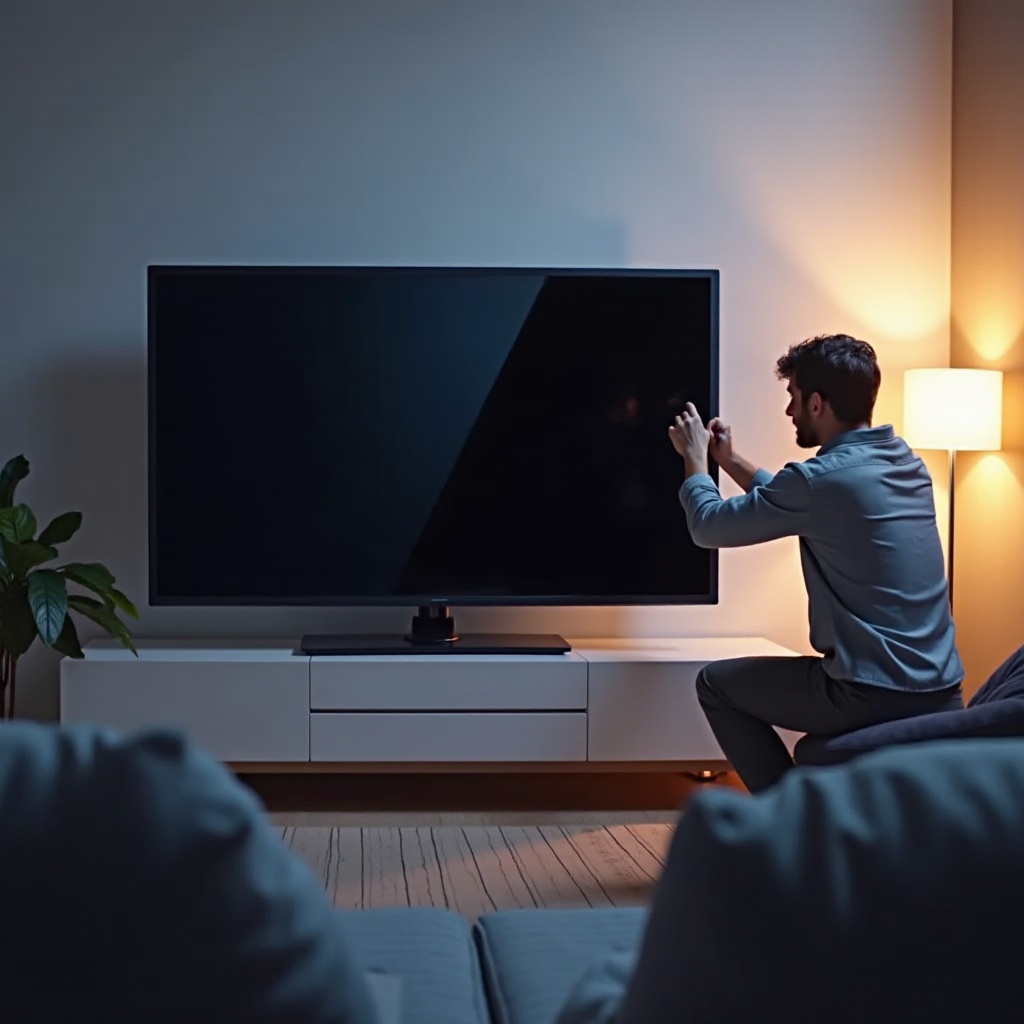
If basic troubleshooting doesn’t work, analyzing your TV’s external connections is the next step. HDMI and other cables often create a pathway to a non-responsive screen.
-
Verifying HDMI Cable Integrity: Inspect each HDMI cable for any signs of damage or looseness. You can also try using a different cable or another HDMI port to eliminate a faulty one.
-
Ensuring Correct Port Usage: Make sure you have selected the appropriate HDMI input source on your TV. Switching between inputs on your remote often corrects an overlooked input error.
-
Exploring Alternative Inputs: Trying different input ports or devices helps determine if the issue is with the TV’s hardware or specific peripherals.
Rectifying connection errors can often restore visibility on your TV. If issues persist, examining software-related causes could be the next best solution.
Addressing Software Glitches
Sometimes black screen problems are rooted in software bugs, which are often fixable with some straightforward steps.
-
Initiating a Soft Reset: Conduct a soft reset to eliminate temporary software issues. Turn off your TV, unplug it, wait 30 seconds, plug it back in, and turn it on again.
-
Updating TV Software: Determine if the software is updated by navigating to the menu, selecting support, and opting for a software update.
-
Factory Settings Reset: As a last alternative, a factory reset might be necessary. Be cautious, as this will erase customized settings. In your TV’s settings, select the general option, then initiate a reset.
Addressing software deficiencies is crucial for regaining screen function. If these measures aren’t effective, consider professional intervention.
When to Seek Professional Help
If your efforts have yet to succeed, professional diagnosis may be needed to address more severe issues.
-
Detecting Hardware Problems: Take note of unusual noises or excessive heat as indicators of possible hardware defects within the television.
-
Reaching Out to Samsung Support: Samsung customer support provides tailored help, offering troubleshooting applicable to your TV’s specific model.
-
Selecting Reliable Repair Services: Should repairs be necessary, ensure you opt for a certified technician or a Samsung service center to guarantee quality repairs.
Recognizing when professional assistance is required can save further damage, ultimately bringing back your TV’s original functionality.
Conclusion
Facing a black screen on your Samsung TV need not be a cause for despair. With extensive diagnostic and troubleshooting methods, from checking power supplies and cables to resolving software anomalies, you can often resolve the concern yourself. If needed, professional help is always available to assist. Following these guidelines will ensure you can quickly diagnose and fix your TV, returning to your favorite shows without delay.
Frequently Asked Questions
Why is my Samsung TV screen black but has sound?
This could be due to a backlight failure, connection issue, or internal software problem. Check connections and try performing a soft reset.
Can a power surge cause a black screen on a Samsung TV?
Yes, power surges can affect the internal components of a TV, potentially leading to a black screen if these components are damaged.
What do I do if my Samsung TV won’t turn on after a power outage?
Check the power source and connections. If the problem persists, perform a soft reset or factory reset to determine if it’s a software issue.