
Facing a non-responsive iPhone screen can be quite a hassle. Whether it’s a sudden software glitch or physical damage to your screen, knowing alternative ways to power off your device can be a lifesaver. Luckily, Apple offers solutions that allow you to turn off your iPhone without using the screen. This guide covers multiple methods that ensure you’re not left with a perpetual reboot or stuck device due to an unresponsive screen.
Introduction
Experiencing a frozen or unresponsive iPhone screen can seem daunting, but don’t panic. There are several strategies you can employ to safely power off your device. Understanding these methods can help you navigate any temporary hiccups or persisting issues, ensuring you retain control over your phone despite a malfunctioning screen.
Understanding Why Your iPhone Screen Might Not Respond
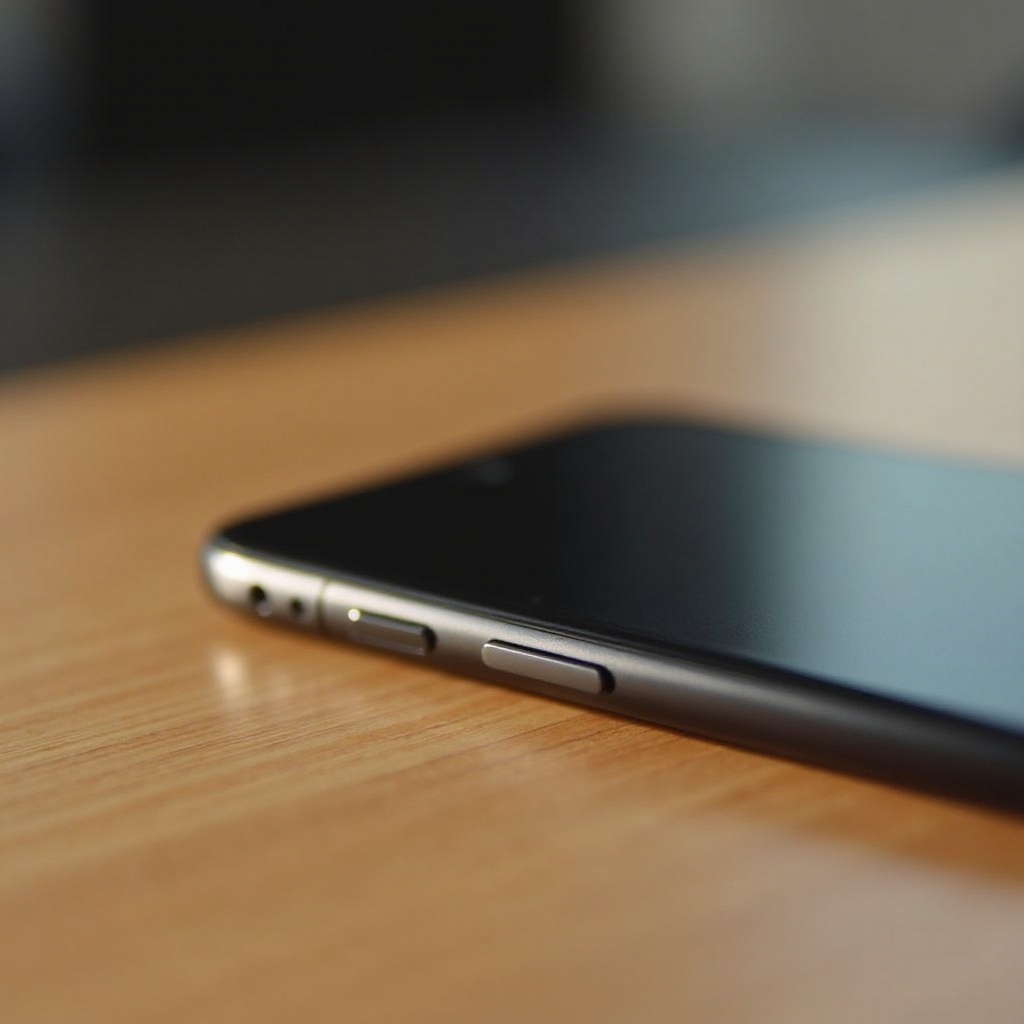
First, let’s explore why your screen may be unresponsive. Knowing the root cause is crucial in deciding the best power-off method. Hardware issues like screen damage or internal faults can often cause failure. Likewise, software glitches resulting from outdated iOS or faulty apps might also be culprits.
These issues demand distinct answers; some might require software updates, while others need a professional’s touch for repairs. Identify the nature of your problem to better tackle it with the appropriate solution to power off your iPhone.
Method 1: Using Physical Buttons to Power Off Your iPhone
If your screen fails to react, the physical buttons on your iPhone can come to your aid:
- For iPhone 8 and later:
- Press and quickly release the Volume Up button.
- Do the same with the Volume Down button.
-
Press and hold the Side button till you see the slider or the device shuts down.
-
For iPhone 7 and earlier models:
- Press and hold the Top (or Side) button with the Volume Down button till you see the slider or it powers off.
Ensure you press sufficiently for these sequences to kickstart the shutdown process, hence avoiding any incomplete shutdown cycle.
Method 2: Enabling and Using AssistiveTouch
In situations where the screen is partially responsive, AssistiveTouch offers a workaround. This accessibility feature is a powerful tool when the physical screen becomes unreliable:
- Enabling AssistiveTouch:
-
Navigate via Settings if possible: Settings > Accessibility > Touch > AssistiveTouch. Activate it.
-
Steps to Shut Down Using AssistiveTouch:
- A floating menu should appear on your screen. Engage it and go to Device> Lock Screen.
This function is invaluable when your screen’s partial functionality allows limited interaction, offering an alternative method to initiate a shutdown.
Method 3: Forcing a Restart to Power Off the Device
In some cases, a forced restart can alleviate issues, or prepare the device for shutdown:
- Difference Between Restart and Power Off:
-
Restarting clears temporary glitches, whereas a complete shutdown is a full reset of operations.
-
Step-by-Step Guide to Force a Restart:
- For iPhone 8 and later:
- Tap Volume Up, then Volume Down quickly, then hold the Side button until the Apple logo shows up.
- For iPhone 7:
- Hold Volume Down and Top buttons till it reboots.
Even though forced restarts are often used to recover from freezes, they set the stage for a successful subsequent shutdown.
Alternative Method: Using iTunes or Finder
If button prompts fail or the physical screen state complicates interaction, using a computer to facilitate a device shutdown through iTunes or Finder could help:
- How to Use iTunes/Finder for Device Management:
- Securely connect your iPhone to a computer using a USB cable.
-
Launch iTunes on PCs and older macOS, or Finder on macOS Catalina and later.
-
Steps to Power Off Your iPhone via PC/Mac:
- Force a reboot as above to enter Recovery Mode, enabling iTunes or Finder to interface.
- Navigate any prompts to control or analyze your device through your computer interface for possible resetting or powering down options.
This method serves as a lifesaver, significantly when software plays a critical role in accessing options beyond standard physical methods.
Tips for Preventing iPhone Screen Issues in the Future
Prevention is always preferable. Achieve this by:
- Regularly updating your iOS to maintain optimal performance and eliminate bugs.
- Employing protective casing and screen protectors to diminish impact damage.
- Handling your device with additional care to avoid drops and impacts.
Implementing these preventative measures diminishes your chance of encountering related issues in future device operation.

Conclusion
Navigating the complexities of shutting down an iPhone without a responsive screen becomes straightforward with the above methods. Adopt the most suitable approach—whether using button routines, leveraging AssistiveTouch, or seeking help from iTunes or Finder. To maintain seamless device operation, consider regular updates and protective measures. Persistent issues should always warrant professional inspection.
Frequently Asked Questions
Can I turn off my iPhone without using any buttons?
Yes, you can use AssistiveTouch or connect your iPhone to a computer for alternate shutdown methods if the screen is responsive enough to activate these features.
What should I do if my iPhone is stuck and won’t power off?
Try a force restart. If that does not resolve the issue, use iTunes or Finder on a computer to attempt recovery or shutdown.
How do I know if my iPhone screen issue is hardware-related?
Visible physical damage, persistent touch insensitivity, or problems after trying software updates may indicate a hardware problem requiring professional diagnosis.