
Introduction
Facing a black screen on your Westinghouse Roku TV can be frustrating. Many users encounter this issue unaware of the underlying causes or solutions. This guide will navigate you through understanding the problem and offer straightforward solutions that restore your TV’s functionality promptly. Let’s start by exploring the nature of the issue and easy fixes you can try at home before resorting to expert help.
Understanding the Westinghouse Roku TV Black Screen Problem
When your TV displays a black screen, it can often feel overwhelming. However, recognizing the potential causes is the first step to resolution. Typically, black screens are due to hardware failures, software glitches, or connectivity problems.
Distinguishing a real black screen from a power issue is crucial. A TV that powers on but displays no image is experiencing a black screen problem. Let’s look at common causes and differentiate them from power issues.
Common Causes of the Black Screen
- Loose Connections: Often, disconnected or loose cables can lead to a black screen.
- Software Glitches: Failed firmware updates might result in display problems.
- Input Source Problems: Incorrect input settings may leave your screen dark.
- Internal Component Failures: More significant issues, such as faulty circuit boards, can cause total display failures.
Understanding these causes helps in tackling them effectively.
Differentiating Between Black Screen and No Power
A black screen is different from a no-power issue. If the TV’s indicator lights are on, the device has power. In contrast, lack of power renders the TV completely unresponsive. Recognizing this distinction ensures you address the right problem. Now, let’s discuss quick fixes that might resolve these issues.
Quick Fixes for the Black Screen Issue
Before opting for costly repairs, attempt these basic troubleshooting steps.
Power Cycling the TV
- Turn off the TV and unplug it from the wall.
- Wait for at least 60 seconds.
- Plug the TV back in and turn it on.
This process can resolve minor glitches and reset the TV’s system.
Checking Cables and Connections
- Inspect all cables to make sure they are firmly connected.
- Try different HDMI ports on your TV and ensure the input source matches the connected port.
If these don’t solve the issue, advancing to more detailed troubleshooting may be necessary.
Advanced Troubleshooting Steps
If simple solutions aren’t effective, your next step involves software and settings adjustments.
Updating the TV Firmware
- Use the Roku remote to navigate to the ‘Settings’ menu.
- Go to ‘System Update’ to check for new updates.
- Update if available, as new firmware can resolve display issues.
Frequently updating firmware not only fixes current problems but prevents future ones.
Resetting Display Settings
- Open the settings menu via the remote.
- Navigate to ‘Picture Settings’ and select ‘Reset.
Resetting can correct misconfigurations causing screen issues.
Performing a Factory Reset
- Go to ‘Settings’ again.
- Head to ‘System’ and select ‘Advanced System Settings.
- Choose ‘Factory Reset’ and confirm.
Be cautious as this will erase all personal settings and downloaded apps. Consider backup options first. If your TV still faces issues, it could point towards hardware problems that need attention.
Handling Potential Hardware Issues
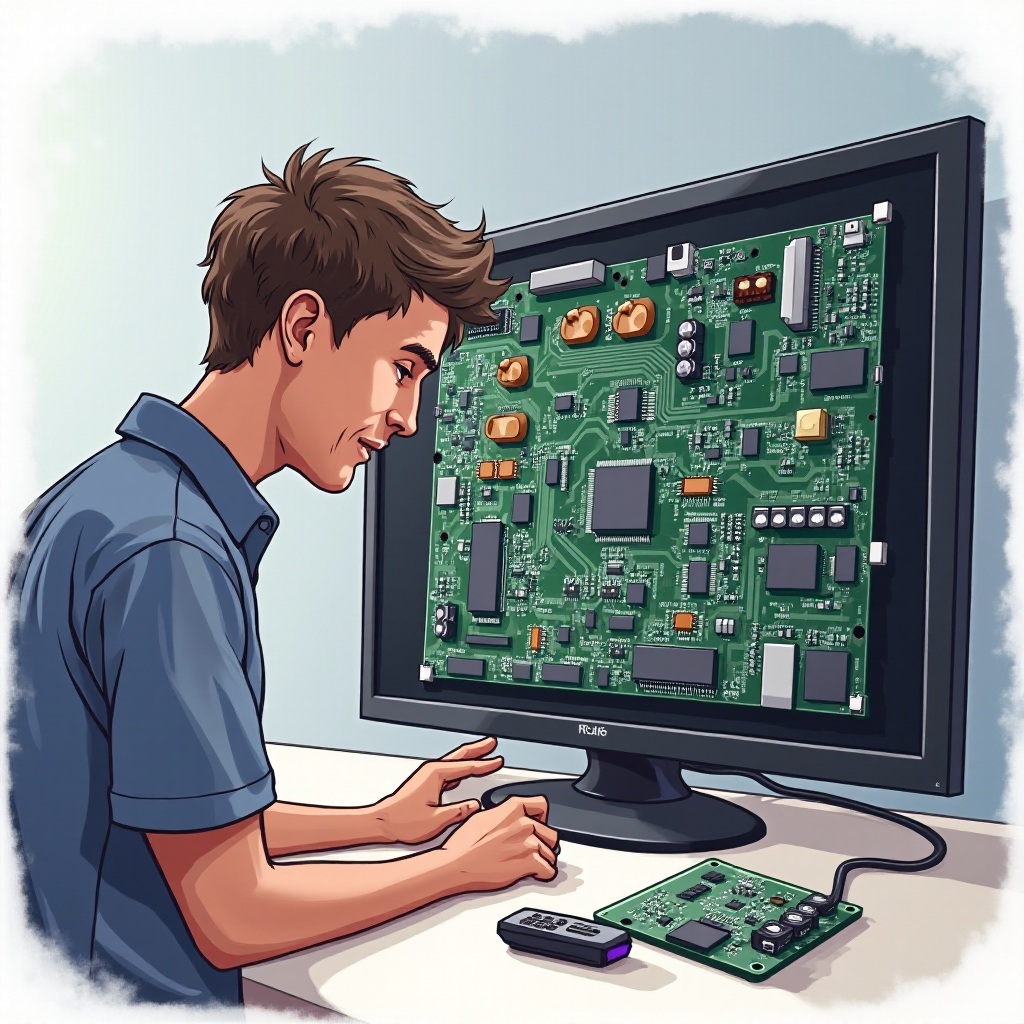
Persistent issues might indicate a need for hardware examination and, possibly, repair. Undertaking such tasks might void any existing warranty, so proceed with care.
Identifying Signs of Hardware Failure
- If the TV remains unresponsive to manual adjustments.
- Presence of flickering or graphical distortions.
Conducting visual checks for physical damage could reveal deeper hardware issues that need professional handling.
Visual Inspections and DIY Solutions
- Examine the TV for visible cracks or other damage.
- Only attempt DIY fixes if you are confident in reassembling the TV safely.
Should these steps fail, professional support may be necessary.
Seeking Professional Help and Support
Knowing when to call in experts can save time and prolong your TV’s life.
When to Contact Customer Support
Seek professional help when:
– Your troubleshooting steps were ineffective.
– You hear unusual noises accompanying the black screen.
Documentation to Prepare for Support
Have ready:
– Your TV’s purchase receipt.
– Warranty information.
– A record of all troubleshooting actions taken.
After considering professional assistance, it’s important to think about preventing future issues.
Preventative Measures for Future Problems
Taking proactive steps can greatly enhance the lifespan and performance of your TV.
Maintaining TV Performance
- Consistently update firmware with internet access.
- Keep the TV dust-free and in a stable environment to prevent overheating.
Routine Checks and Maintenance Tips
- Inspect and replace cables with signs of wear.
- Ensure the TV stays in a stable, temperature-controlled setting.
Conclusion
Resolving the black screen issue with your Westinghouse Roku TV involves identifying the problem, taking corrective action, and, if necessary, consulting professional services. Following these steps can restore your TV to its optimal state and ensure a consistent and pleasant viewing experience.
Frequently Asked Questions
Why does my Westinghouse Roku TV screen go black randomly?
Random black screens generally occur due to loose connections or software glitches, both of which can be resolved with proper troubleshooting.
Can a software update fix the black screen issue on my Roku TV?
Yes, updating the firmware can address software-related black screen problems by resolving bugs and inconsistencies in the current version.
How do I know if my TV is still under warranty for repair?
Check your purchase documentation or contact Westinghouse customer support with your TV’s serial number for warranty verification.