
Introduction
Experiencing silent gaming on your PS5 can be immensely frustrating. When your console doesn’t play sound through the TV, the immersive experience diminishes. Understanding the reasons behind this annoyance is crucial. This guide provides effective troubleshooting solutions to restore sound and elevate your gaming sessions.
Understanding the PS5 Sound Problem
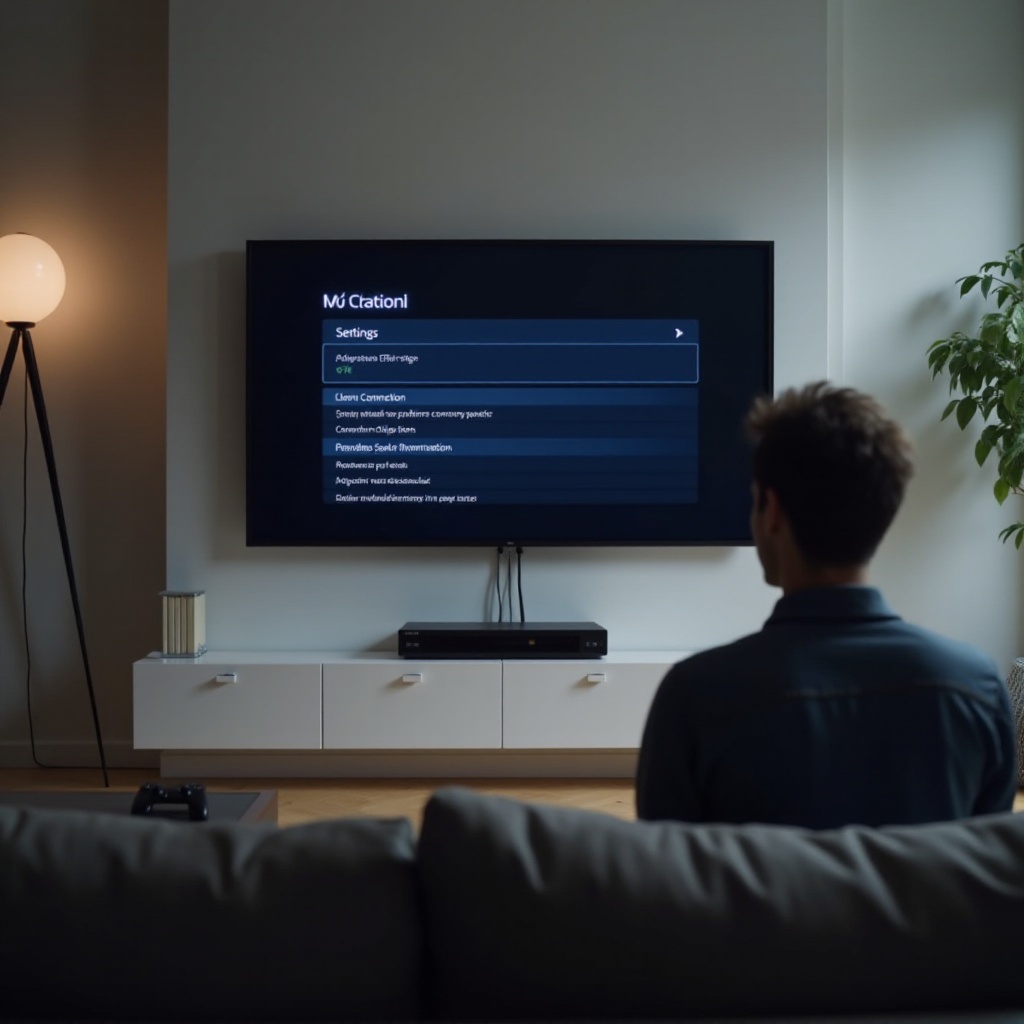
Before diving into solutions, identifying potential causes is essential. Incorrect audio settings on either the PS5 or the TV, faulty HDMI cables, or software issues might be the culprits. Knowing these possibilities helps navigate towards impactful solutions. This understanding lays the foundation for our troubleshooting journey.
Basic Troubleshooting Steps
-
Check Volume Levels and Mute Settings: Ensure the volume is up on both your TV and PS5 without being muted. Check with remote controls for both devices to confirm.
-
Inspect HDMI Cables and Connections: Check for loose or damaged HDMI cables. Unplug and examine the cable, then reconnect or replace it to ensure a secure connection.
-
Verify TV Input and Output Settings: Sometimes, incorrect input sources can be the issue. Use your remote to select the right HDMI input connected to your PS5.
These basic steps often solve the problem, but when they don’t, more advanced methods are necessary.
Advanced Troubleshooting Techniques
-
Update PS5 and TV Firmware: Software updates can resolve many problems. Check your PS5’s settings for updates. For your TV, consult the manual for firmware updates.
-
Adjust PS5 Audio Output Settings: In the ‘Sound’ settings, try various ‘Audio Output’ formats to find one compatible with your TV.
-
Test Sound on Another TV: Testing the PS5 with a different TV confirms whether the problem is with the original TV. If sound works on another TV, revise your TV’s settings.
If your sound issue persists after these steps, exploring alternative solutions could be the key.
Exploring Alternative Solutions
-
Using an External Sound System: Connect a soundbar or home theater to bypass the TV’s speakers. This method can offer better sound quality and a permanent fix.
-
Exploring Audio Format Compatibility: Some TVs might not support the audio format used by the PS5. Change the audio format in the PS5 settings to resolve compatibility issues.
These alternatives provide additional options beyond the usual fixes. For persistent problems, software solutions might offer relief.
Common Software Fixes
-
Reset PS5 Settings to Default: A reset can resolve conflicts affecting audio. Go to ‘Settings,’ then ‘System,’ and choose ‘Reset’ to return to factory settings.
-
Perform a Hard Reset of PS5: Holding the power button until the PS5 powers off and then restarting can clear temporary glitches impacting sound.
Addressing these software concerns ensures thorough troubleshooting. Still, expert help may be necessary when all else fails.
When to Seek Professional Help
If sound issues persist despite these measures, there may be a hardware problem. Contact Sony Support or a technician for further diagnosis and repair. Expert intervention ensures your console and TV get the necessary attention for unresolved issues.
Conclusion
Addressing PS5 sound issues can significantly improve your gaming experience. Each step, from checking cables to adjusting settings, plays a crucial role. For complex problems, professional help provides peace of mind.
Frequently Asked Questions
Why isn’t my PS5 playing sound through HDMI?
This could be due to incorrect audio settings, incompatible formats, or faulty cables. Adjust settings and check connections to troubleshoot.
Can a faulty HDMI cable cause no sound on PS5?
Yes, a damaged HDMI cable can interrupt audio. Regular inspection and replacement can prevent such issues.
How do I reset my PS5 audio settings?
Navigate to ‘Settings’, select ‘Sound’, then ‘Audio Output’. Choose ‘Reset to Default’ to restore factory settings.