
Introduction
Inserting a SIM card into your Blu phone is an essential step to activating your device. Without a SIM card, accessing network services such as calls, messages, and mobile data becomes impossible. This guide walks you through the steps to correctly insert your SIM card and address any potential issues.
Understanding the model of your Blu phone is crucial as it guides you in locating the SIM card slot and performing the process efficiently.
Understanding Your Blu Phone Model
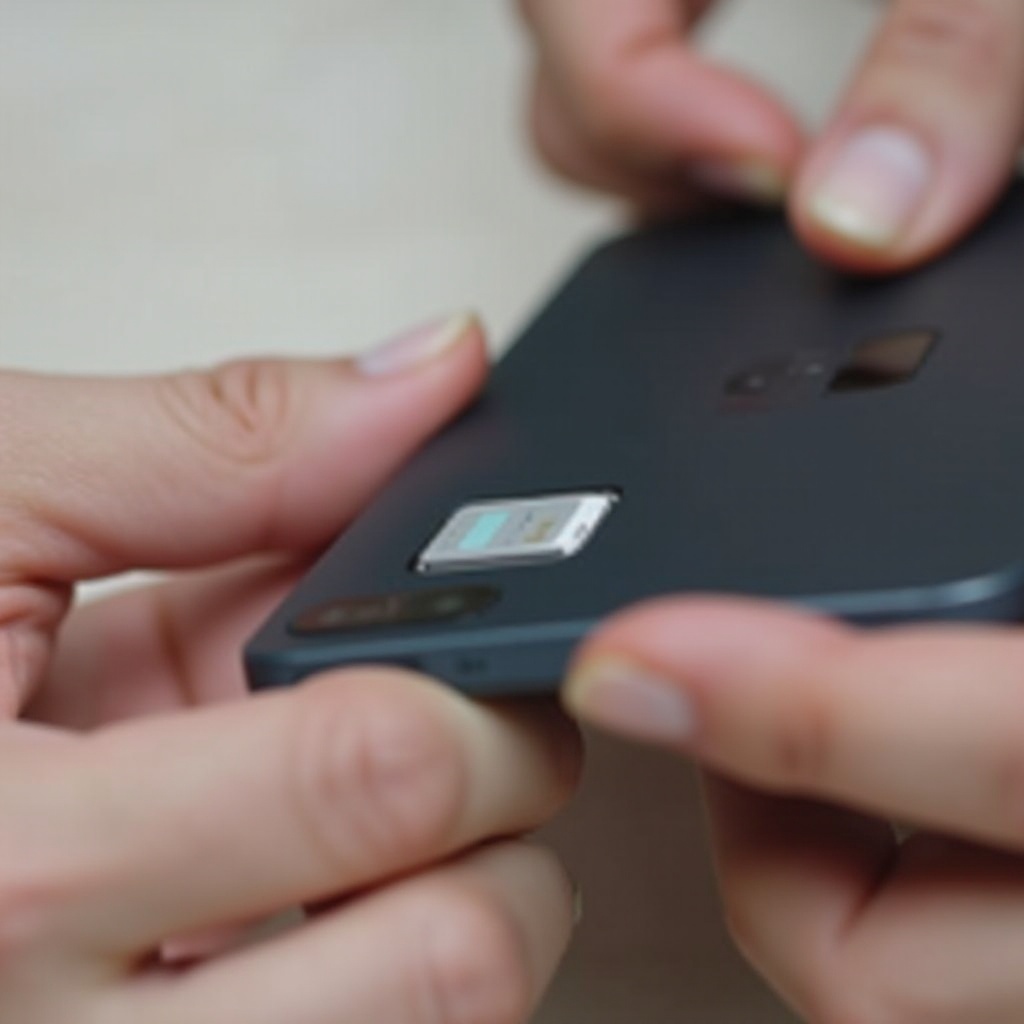
Blu phones come in a range of models, each with its features. Identifying your specific model is important because it determines the SIM card slot location and the process for accessing it. You can find this information in your phone’s user manual or on the box. Knowing your model helps ensure you’re using the correct procedure and tools.
With your model determined, gather the essential tools to proceed with SIM card insertion.
Tools You Will Need
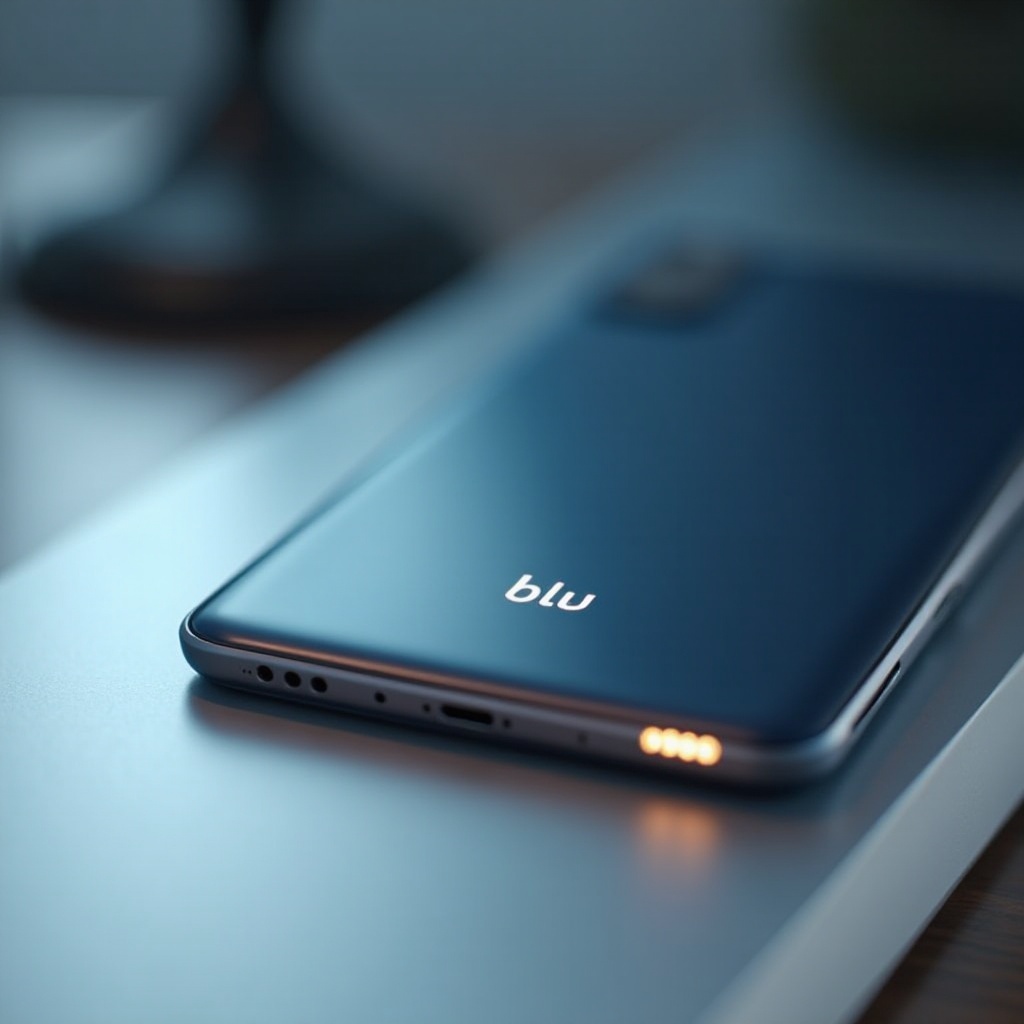
Before you begin, having the right tools on hand is vital. Most Blu phones do not require extensive tools, but it’s best to be prepared. Here are what you’ll need:
– SIM Ejector Tool: Often provided with new phones. Alternatively, a straightened paperclip can suffice.
– Microfiber Cloth: Use it to keep your phone clean from any dust or fingerprints.
– Stable Surface: Ensure a stable work surface to prevent loss of small components.
With the tools ready, the next step is finding the correct location of your SIM card slot.
Locating the SIM Card Slot
The placement of the SIM card slot varies across Blu phone models. Here’s how to locate it:
– Side Tray Models: These have a small hole on the side. Insert the SIM ejector tool into this hole to pop the tray out.
– Back Cover Models: Some phones require removing the back cover. Carefully follow the manual instructions to expose the SIM slot located near the battery compartment.
Now that you’ve located the SIM card slot, we’ll cover the step-by-step insertion process.
Step-by-Step Guide to Inserting a SIM Card
To ensure correct SIM insertion, follow these detailed steps:
-
Power Off Your Device: Always switch off your phone before inserting or removing a SIM card to avoid causing any damage.
-
Eject the SIM Card Tray: For side tray models, gently insert the SIM ejector tool into the pinhole to release the tray.
-
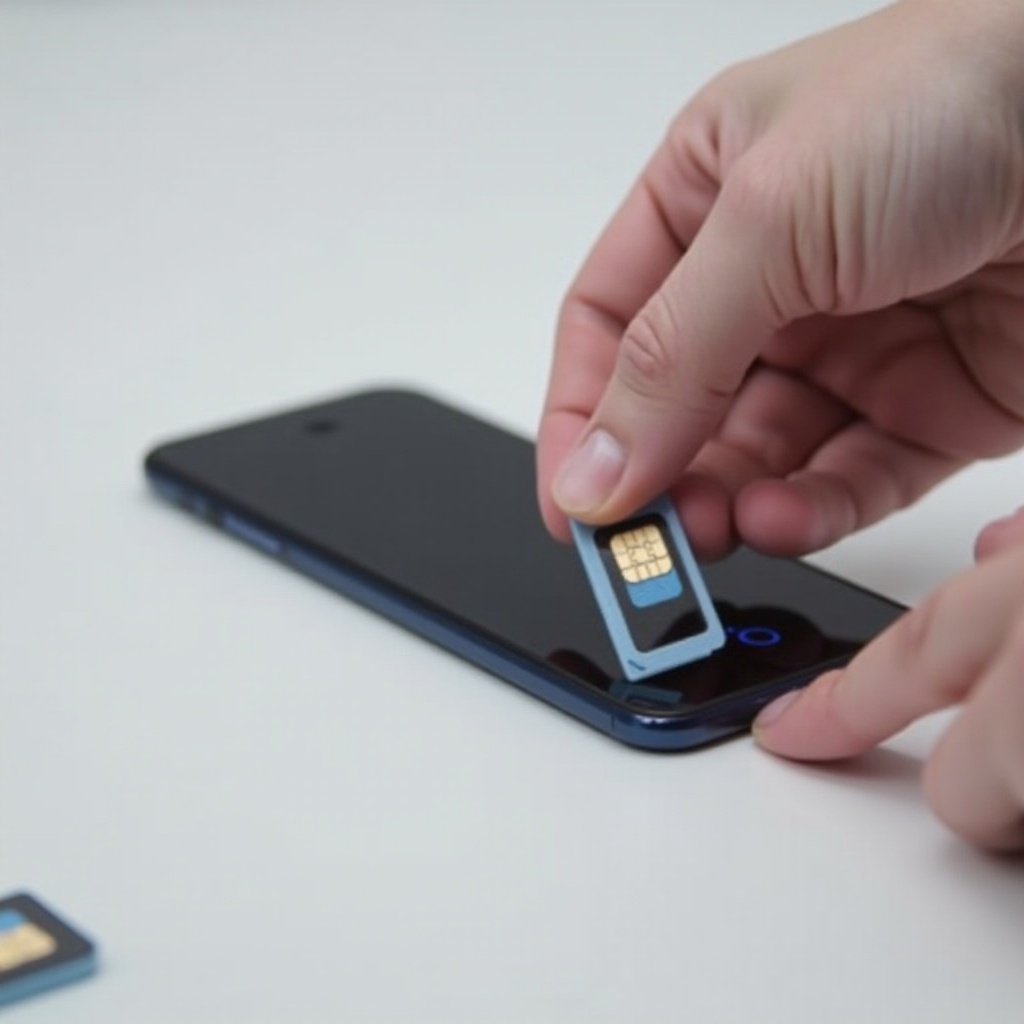
Place the SIM Card Correctly: Align the card with the tray, ensuring the notched edge matches. The metal contacts should face downwards to make contact with the phone.
-
Reinsert the SIM Card Tray: Slide the tray gently back into the phone, ensuring it fits snugly without force.
-
Replace the Back Cover: If your phone requires it, ensure the back cover is securely fit to protect the internal parts.
With the SIM card correctly inserted, let’s discuss tips that can help secure a successful installation.
Tips for Ensuring a Successful SIM Card Installation
Keep these tips in mind to ensure your SIM card functions properly:
– Verify Compatibility: Your SIM card must match your phone’s specifications and network compatibility.
– Avoid Touching Contacts: Handle your SIM card with care, touching only the edges to maintain clean metal contacts.
– Check Alignment: Double-check the alignment when placing the SIM card in the tray for a snug fit.
Troubleshooting is next, should any issues arise even after proper installation.
Troubleshooting Common SIM Card Issues
Despite careful handling, issues can emerge post-insertion. Here’s how to troubleshoot:
– SIM Not Detected: Double-check the tray’s seating in the slot. A reinsert may solve the issue.
– No Signal or Service: Verify that your phone’s network settings recognize the SIM. Ensure Airplane mode is off.
– SIM Tray Stuck: If the tray won’t budge, check for debris. Avoid applying excessive force; gently work the tool in.
Conclusion
Correctly inserting a SIM card into a Blu phone sets the stage for optimal communication. By recognizing your phone model, using the appropriate tools, and following best practices for SIM insertion, you can maintain reliable connectivity and enjoy the full features of your device.
Frequently Asked Questions
Can I insert a microSD card in the same slot?
Yes, many Blu phones support microSD cards in the same tray or nearby. Check your model specifications to confirm compatibility.
How do I know my SIM card is working correctly?
After insertion, switch on your phone. If the SIM card is functioning, you’ll see signal bars appear in the status bar.
Do I need to reboot my Blu phone after inserting the SIM card?
Rebooting your phone can help it recognize the new SIM card and ensure connectivity. It’s a common troubleshooting step for resolving issues.